Give them time. Let them see it. · Interactive walkthrough
Countdown, Count-Up and Presentation Timer on TV
A clean timer for the room, with timing controls on your device.
Control a full-screen TV or projector timer from your phone. Explore Down, Up and To a time, with labels, Pause, Resume and Restart for meetings and workshops.
Open vuthis.com on the TV or projector
Open vuthis.com in the display browser. For a projector, use its browser or the computer already connected to it. Keep the connection code on screen.
Connect your phone, tablet or laptop
Scan the screen QR code with your phone. On a laptop or tablet, open vuthis.com/r and enter the screen code. Both devices need internet; they can use different networks.
Choose Timer and a mode
Choose Down for a set duration, Up for elapsed time or To a time for a fixed clock-time target.
Set the duration or target and label
Enter the duration or finishing time. Add a label such as Break, Questions, Presentation time or Group work. Choose readable colours.
Choose Show now and run the timer
Show the timer on the shared display. The audience sees the large timer while the controller keeps its buttons.
Pause, resume or restart the appropriate mode
Down and Up support Pause, Resume and Restart. To a time stays tied to the fixed target. At the end of a countdown, the timer and background colours swap.
Useful when it matters
Put it to work in the room.
- Timed agenda items in a meeting.
- Classroom exercises and exam timing.
- A workshop break that ends at a known time.
Read the V U This Countdown, Count-Up and Presentation Timer on TV product guide
Get the result right
A quick screen check.
- To a time stays tied to its target; it does not pause like a duration timer.
- Check the displayed value before the audience starts a timed activity.
Read the screen from the audience position. Keep the selected content clear, current and useful for the people in the room.
Give them time. Let them see it.
Open vuthis.com on the display. Connect from another device. The timer follows the event rather than distracting from it.
The next useful screen
Keep the whole setup ready.
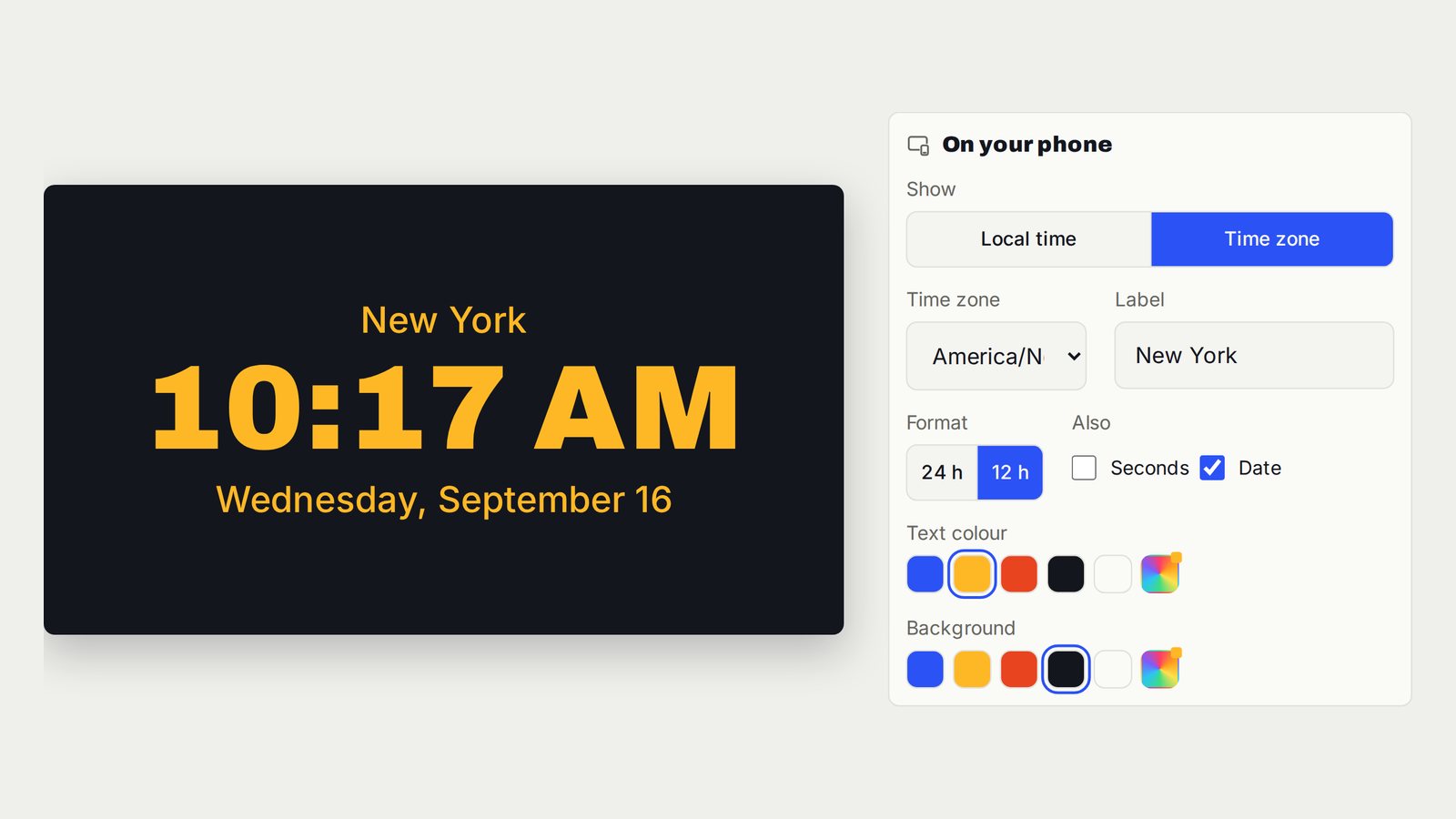
Show a Full-Screen Clock or World Time on TV
One large labelled clock for the time the room needs to follow.
Follow the interactive walkthrough →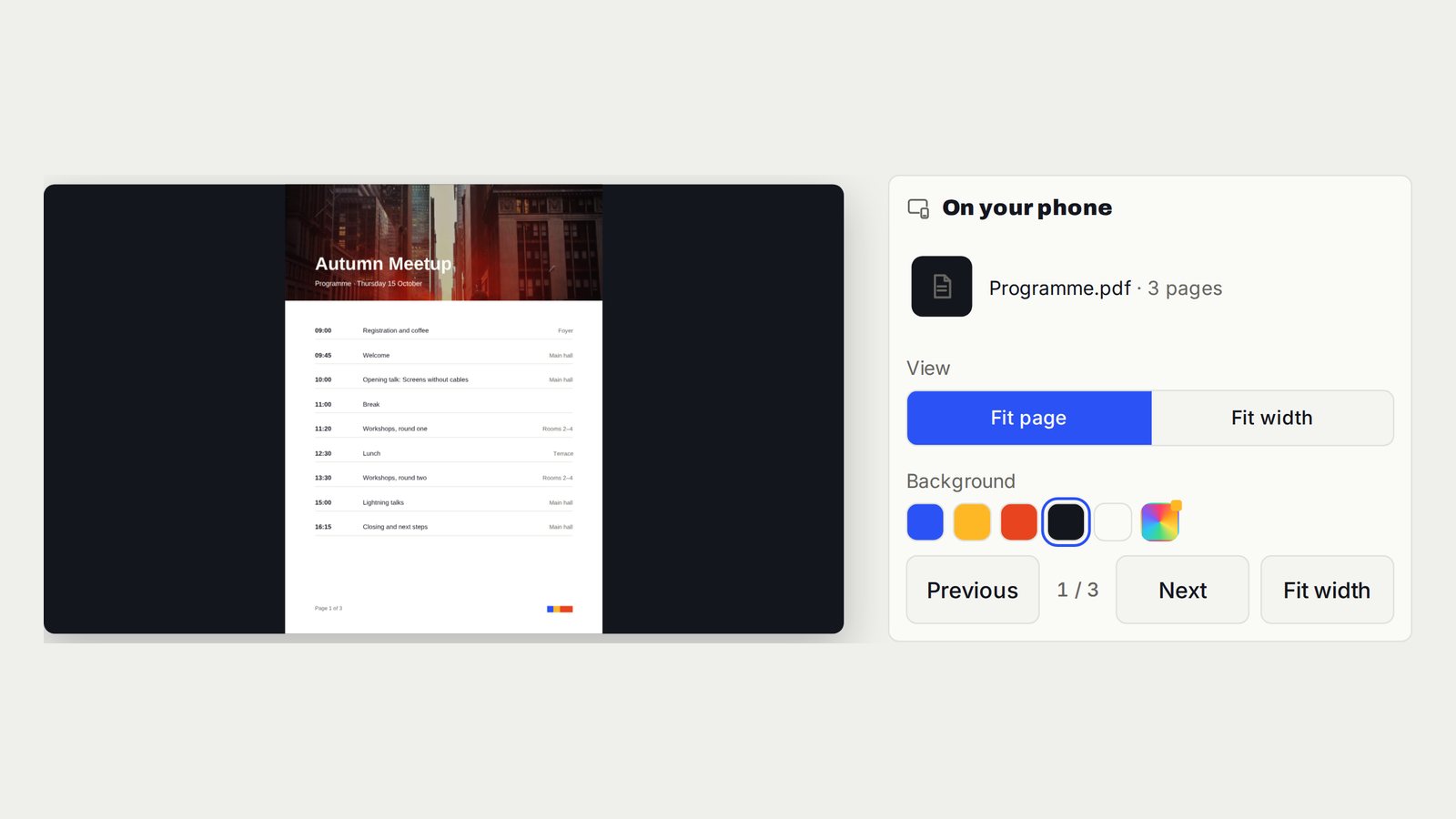
PowerPoint, Google Slides and Keynote on TV Without HDMI
Slide pages on the room screen. You decide when the next one appears.
Follow the interactive walkthrough →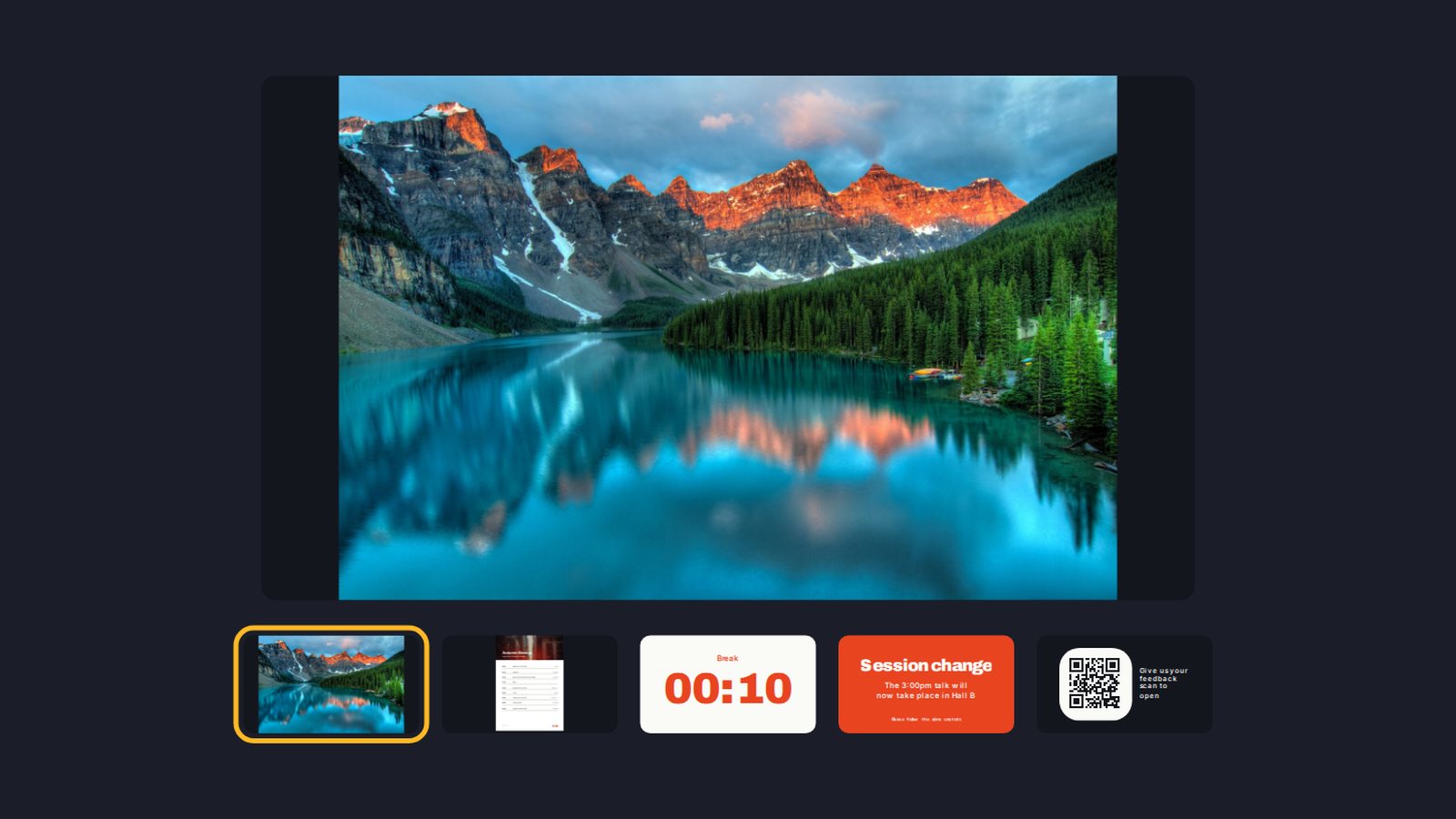
Build a Digital Signage Playlist on TV Without a New Media Player
One screen moving through the content you prepared, in the order the room needs.
Follow the interactive walkthrough →Read · Print · Reuse
Keep this walkthrough with the next job.
The two-page handbook has clickable setup and related-guide links. Its page images and descriptions are also available as a IIIF presentation manifest, linked to this interactive page and the main V U This product.